
Swap an entire head, hair included, while the AI does the cutting for you
Upload one photo with the head you want and one with the target body, then let an AI head swap tool detect the face, hair, hairline, ears and neck on its own. You click generate. No mask, no lasso, no cutout. Tools like Live3D, Facy and Magic Hour run segmentation that finds the whole head region automatically, so the slow Photoshop step disappears. Match the angle and lighting of your two photos, keep your source front-facing, and the edges blend without any hand cleanup.
Head swap vs face swap: what 'no manual masking' actually means
A head swap moves the complete head, not just the eyes, nose and mouth. Face, hair, hairline, ears, neck: all of it travels onto the new body. A face swap leaves the original hair and head shape in place, which is why a face swap of a long-haired person onto a buzz cut looks wrong instantly.
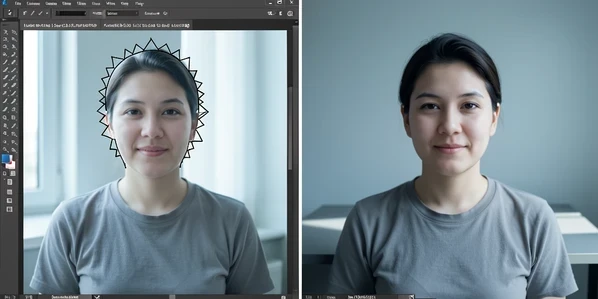
Manual masking is the part people dread. In Photoshop you trace the head with a lasso or pen tool, refine the edge around every stray hair, then erode the mask so the join does not show. It is slow and it rewards skill you may not have. Auto-detection deletes that step. The AI segments the head region for you and aligns the result, claiming to match angle, lighting, skin tone and the neck join so nothing has to be drawn by hand.
That is the dividing line for this guide. A tool is mask-free only when it detects the head for you. Plenty of editors call themselves easy while still asking you to brush over a region or accept a fixed oval that clips the hair. Easy is a marketing word. Auto-detected face, hair and neck is a behavior you can verify, and it is the one that actually removes manual work.
What you need before you start
Auto-detection is only as good as the photos you feed it. Most failed swaps trace back to a bad input, not a bad tool. Get these right and the AI has everything it needs to find the head and place it cleanly.
- Two images, one holding the head or face you want and one with the target body or scene.
- A clear, front-facing source photo, well lit, with nothing covering the face, hair or neck.
- Lighting direction and head angle that roughly agree between the two photos, since the AI blends what it is given rather than relighting the scene.
- An upload in JPG, JPEG, PNG or WEBP, within the size cap (Live3D accepts files up to 20 MB).
- The legal right to edit the image, plus permission from anyone shown in it.
HeadSwap.app puts the photo quality point plainly: clear, front-facing, high-quality images with good lighting and minimal obstruction let the AI detect face, hair and neck accurately. A photo where hair falls across the cheek or the head turns away gives the detector nothing solid to lock onto.
Step-by-step: swap a head with hair, no masking, in a no-signup tool
Live3D Head Swap runs in the browser with no signup, and it auto-detects the face, hair and neck the moment you upload. Here is the whole flow.
- Upload the source image holding the head you want. Use a clear front-facing JPG, PNG or WEBP up to 20 MB. The AI reads the face, hair and neck for you, with no mask or cutout to draw.
- Add the target body or scene image. Pick one whose body faces the same direction and sits under similar lighting, so the AI can line up the angle, skin tone and neck join.
- Click generate. The preview appears in seconds.
- Download the result. It comes out high quality and watermark-free, no account needed.
Notice what is missing from that list. There is no step where you trace the hair or refine an edge. The hairline rides along because the detector treats it as part of the head. If you want that behavior guaranteed, prefer a tool that explicitly states it detects face, hair and neck rather than one that only promises a quick face swap.

Alternative: use a text-prompt tool to keep glasses, expression or makeup
Auto-detection sometimes drops fine details it does not read as part of the head. A second mask-free route fixes this: a chat-style editor that takes a written command instead of a selection. You describe the result you want, and the AI steers toward it.
Dzine AI Head Swap works this way. You drop the base photo and the head image into its Chat Editor, draw nothing, and type a command describing how the head should sit on the body. Dzine warns that mismatched head and body angles stop seamless alignment, so keep the head facing the same way as the base body before you generate.
Facy adds a tighter handle on details. After it places the detected head, you expand the customize option and add a short prompt such as keep glasses or keep eyes open, then regenerate. There is no queue or wait between tries, so you can run the swap again and again until the accessory or expression survives. That repeat-without-waiting loop is what makes prompt editors worth reaching for when a one-click tool keeps losing the same detail.
Troubleshooting: fixing weird edges, hair lines and angle mismatch without going manual
Most bad results come from a handful of causes, and each has a fix that keeps you inside auto-detection. You do not go back to manual masking. You change the input or change the tool.
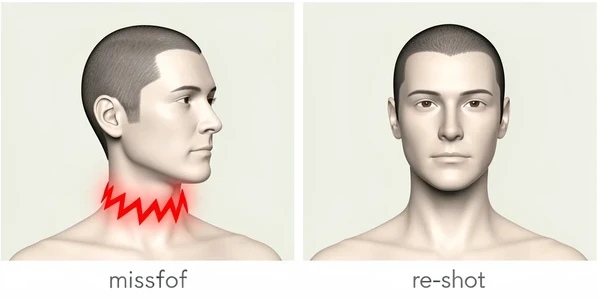
Angle mismatch. If the body faces forward but the head photo is turned, the AI cannot align the two and the join looks off. Pick a head photo facing the same direction as the base body, or re-shoot one of them to match. This is the single most common break, and the deepfake forums describe the same failure under their own workflows.
Detection failure on the source. Poor lighting, an obstruction, or a non-front-facing angle stops the AI from finding the face, hair and neck, so the blend never gets clean inputs. Swap in a clear, well-lit, front-facing photo and the detector locks on.
Dropped glasses, makeup or a smile. The model skipped a detail it did not register as the head. Re-add it with a customization prompt like keep makeup and regenerate rather than editing the pixels yourself.
Hair bleeding, black lines or tearing at the edge. Here is the tell most guides miss. If a tool keeps leaving stray hair, seams or torn edges no matter how good your photos are, that tool is working from a fixed mask that clips the hair region. Deepfake hobbyists patch this by eroding the mask by hand, which only partly hides the damage. Do not chase that. Switch to a segmentation-based tool that detects hair and neck on its own, and the edge problem stops at the source.
Is it private and legal to use the result?
Uploading a recognizable face raises two fair questions: where does the photo go, and are you allowed to do this? Check the privacy statement before you upload anything you would not want stored. Several tools address this directly. Live3D says uploaded images are used only to generate the swap, are not shared, and are processed securely. Magic Hour states uploads are stored securely, used only to process the request, and not shared with third parties. HeadSwap.app says it follows strict policies so facial data is never stored. Read the one that applies to the tool you actually open.
Consent is the part no tool can handle for you. Facy spells out the terms most others share: confirm you have the legal right and permission from anyone depicted, never use images of people under 18, and do not use a head swap for impersonation, fraud, harassment or deception. The technology is mask-free. The responsibility is not.