
Face swapping in Photoshop with Generative Fill: what it can and cannot do
Generative Fill can replace a face inside Photoshop, but it will not paste in a specific person you have in mind. The feature regenerates the selected region using Adobe Firefly, and Firefly draws only from Adobe sources. So you get a brand-new, AI-invented face that fits the lighting and angle, not the face from your reference photo. That single fact decides which of the two routes below you need. For a generated stand-in face, Method 1 takes under a minute. For a chosen likeness, you need the Harmonization workaround in Method 2.
Can you actually face swap in Photoshop with Generative Fill?
Yes for a new face, no for a chosen one. There is a real difference between generating a new face in place and pasting a specific person's face, and almost every frustrated thread on this topic confuses the two. Generative Fill belongs to the first category. Select a face, type a prompt, and Firefly paints a fresh person into that spot.
The limitation is structural, not a bug you can prompt your way around. Adobe staff and users confirm in the Adobe Community thread that Generative Fill uses Adobe-owned training material as its only input, which means your friend's face, an actor's face, or any photo on your drive is simply never seen by the model. Want that exact person? Then Generative Fill alone is the wrong door, and you skip to Method 2.
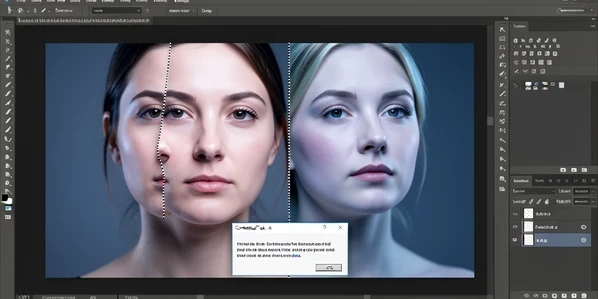
What you need before you start
Three things stop most people halfway. Get them in place first.
- A recent Photoshop version that shows the Contextual Task Bar and Generative Fill. Adobe offers a free trial if you need to follow along before committing.
- A base image that is well lit and sharply focused, with the subject facing the camera. Output quality tracks the clarity of what you feed in.
- A reference photo of the specific face, only if you plan to attempt the chosen-face workaround.
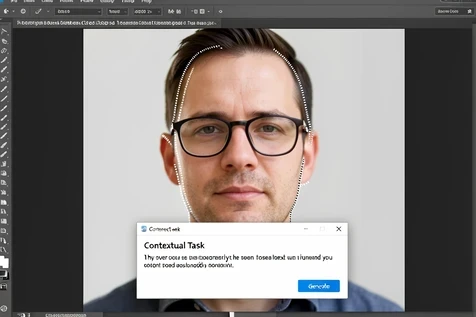
Method 1: Replace a face with Generative Fill (Contextual Task Bar)
This is the fast path when any believable face will do. Five steps, mostly clicking.
- Open the photo through File then Open.
- Draw a selection around the face with the Lasso tool. Switch to the Quick Selection tool when you need a tighter edge.
- Keep hair, glasses, and earrings outside the selection, because anything you include can be regenerated and lost.
- Type your text prompt into the Contextual Task Bar that pops up under the selection, then generate.
- Inspect the variations Firefly returns and pick the strongest one.
A prompt does not need to be elaborate. Something like young man, neutral expression, soft natural light steers the result without overconstraining it. If the first batch looks off, enlarge the selection slightly and generate again. A wider region gives the model more context to blend edges, and you can then choose the variation that combines best with the original head.
Method 2: Workaround to swap in a SPECIFIC face
Here is the only reliable way to land a chosen face through this workflow, pieced together from the same Adobe Community discussion. It leans on Neural Filters to do the blending that Generative Fill refuses to do from your source.
- Copy the center of the face you want, eyes, nose, and mouth, and paste it onto the target image roughly in position.
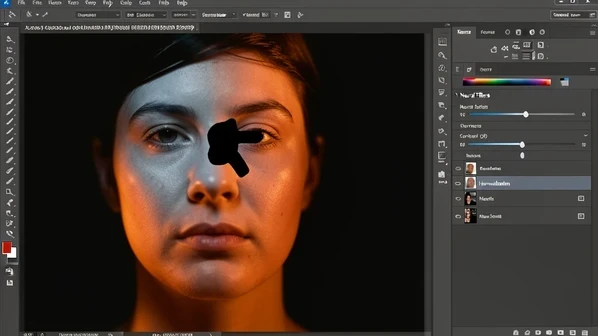
- Run Neural Filters then Harmonization so the pasted face takes on the target's color and lighting.
- Make a broad selection around the whole face area, then apply a negative mask over the copied part so it stays protected.
- Run Generative Fill with the prompt left empty or set to a single period, letting it merge the protected face into the surrounding skin.
Match the angle before you do any of this. A reference face shot at roughly the same tilt as the target blends far more convincingly than one fighting the perspective. Harmonization handles color and light, the hardest part to fake, but it cannot rotate a head. Save a final skin-tone pass for the end, since lighting and tone are where a swap usually betrays itself.
Fixing the Generative Fill censorship or guideline error
Generate over a face and Photoshop sometimes refuses, throwing a guideline or content error even though nothing about your image breaks a rule. It is an overcautious filter firing on the face region. The community fix is almost absurdly simple: type a single period into the prompt field before you hit generate. That tiny non-empty input slips past the block and lets the merge run. Use it in both methods whenever the empty prompt gets rejected.
Troubleshooting unnatural results
When a swap looks wrong, the cause is usually one of four things. Read the symptom, apply the fix.
| Symptom | Why it happens | Fix |
|---|---|---|
| Distorted eyes, an extra ear, or a double hairline | The model guessed badly at the edges of a tight selection | Enlarge the selection so the model sees more context, then regenerate and pick a cleaner variation |
| Lighting or skin tone does not match the body | The generated or pasted face carries its own color cast | Run a Harmonization pass, then finish with a manual skin-tone adjustment |
| The face looks grainy and harsh | Too much sharpening was applied | Back off to only slight sharpening to keep definition without grain |
If you cycle through several regenerations and the face still fights you, that is the signal to stop forcing it. A dedicated plugin or standalone tool will get there faster than a tenth Generative Fill attempt.
When Generative Fill is the wrong tool
Sometimes the honest answer is to leave Generative Fill behind. If you need a guaranteed likeness with room to keep editing, the Picsi.Ai Photoshop plugin swaps faces inside your project and drops each swap onto a new editable layer, so the edit stays non-destructive. It is paid-subscriber only across every tier, so factor that in.
Not in Photoshop at all? Standalone face-swap tools do the job in seconds. Pixlr's AI Face Swap returns a result in a few seconds and hands back a PNG, while Pincel typically finishes in about five seconds, a little longer under heavy load. Both skip the selection-and-prompt dance entirely.
One more thing before you publish: this AI can shift a person's age, ethnicity, or expression, which makes consent a real obligation, not a footnote. Swap a real person's face only with their permission and within ethical bounds.