
Swap multiple faces in any photo or video
Upload your group image, then add a replacement face for each person. The AI matches skin tone, angle, and lighting across all subjects automatically.
How to swap multiple faces in three steps
The process is the same whether you are working with two people or an entire group — upload once, assign faces, download.
-
01
Upload your group photo or video
Click the upload area and select the image or video clip containing all the faces you want to replace. The AI immediately scans the file and draws a bounding box around every detected face, numbering them so you can track each one individually.
-
02
Assign a replacement face to each person
For each numbered face, upload a clear source photo of the person whose face should appear there. You can use a different source image for every subject in the group. The AI aligns each replacement to match the original head angle, scale, and expression.
-
03
Generate and download the result
Click the swap button. The AI processes all face replacements simultaneously, blending skin tone and lighting for each subject. When the preview appears, inspect each face, then download the finished image or video in full resolution.
Who uses multi-face swap — and why
From family albums to professional productions, swapping multiple faces solves real creative and practical problems.
-
Fix a group photo where someone blinked
A photographer or family member can replace just the one face that was closed-eyed or turned away, pulling it from a better shot taken seconds earlier — without reshooting the whole group.
-
Add an absent person to a group shot
Event planners and families can insert a missing member — someone who could not attend a reunion or wedding — into the official group photo using a separate portrait.
-
Create a prank or meme with friends
Content creators swap all faces in a friend group photo to produce a funny meme or social media post where everyone appears as someone else in the picture.
-
Produce a film or video project
Indie filmmakers and video editors replace two or more actors' faces in a scene to recast roles, create stunt doubles, or produce a deepfake-style creative effect for a short film.
-
Swap faces in a team or yearbook photo
School administrators or sports coaches can update an existing team photo by replacing the faces of players who transferred or joined after the original shoot.
-
Generate character art for games or stories
Game designers and writers place real reference faces onto multiple characters in a scene illustration to quickly prototype how a cast of characters looks together.
-
Swap faces in a video with multiple people
Video content creators replace two or more faces across every frame of a short clip, producing a seamless multi-person face swap video for entertainment or social media.
Multi-face swap results across different scenes
-
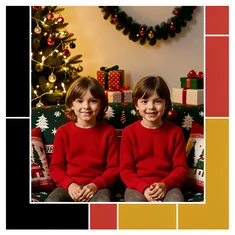
Siblings swapped in a holiday card
-
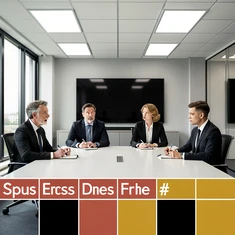
Entire cast swapped in a TV scene
-
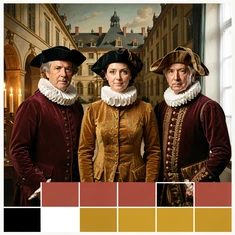
Three friends as historical figures
-
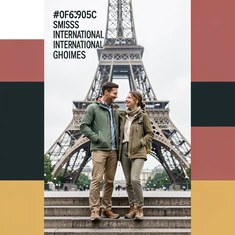
Couple swapped into a travel photo
-
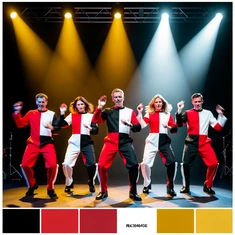
Multi-person swap in a music video frame
Blending modes for every group photo type
-
 No. 01
Photorealistic blend
Matches the skin tone, texture, and lighting of each replacement face to the original photo's conditions. Best for group portraits where the result needs to look like a genuine photograph.
-
 No. 02
Stylized cartoon mode
Renders each swapped face in a flat illustrated style consistent with animated or comic-book source images. Useful when the target photo is already illustrated or when you want a graphic-novel aesthetic.
-
 No. 03
High-contrast editorial
Applies a bold, high-contrast treatment to all swapped faces simultaneously, making the result suitable for magazine covers, posters, or editorial layouts where dramatic visual impact matters.
-
 No. 04
Vintage film grain
Adds a consistent analog film grain and warm color cast across all swapped faces, unifying the result so replacement faces do not look digitally cleaner than the rest of the aged photo.
-
 No. 05
Cinematic color grade
Applies a teal-and-orange or cool-blue cinematic LUT across the entire output after all faces are swapped, giving multi-person video and photo results a consistent film-production look.