Fix the one face that ruined your family photo
One blink. That is all it takes to spoil a frame where everyone else finally smiled at once. You do not have to reshoot or rebuild the picture. Pick a second shot where that one person looks right, then swap only their face into your keeper photo while every other face, pose, and the background stay exactly as they were. A browser tool does it in seconds, a phone app does it on the device the photo already lives on, and Photoshop gives you manual control when an AI grabs the wrong person.
Why one bad face is harder to fix than it looks
The trigger is small and always the same. A toddler turning away at the shutter click. The uncle caught mid-frown while everyone else grinned. One child with both eyes shut. Out of an otherwise flawless group shot, a single face fails, and herding a family back into position for another take is rarely realistic.
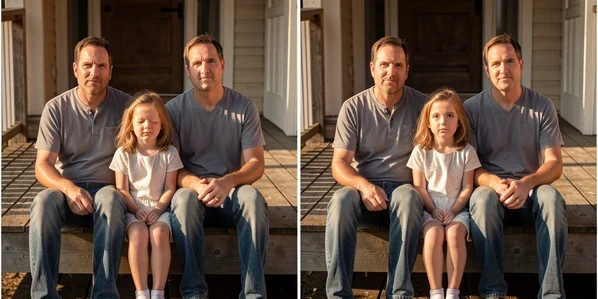
Here is the catch most guides skip: plenty of face-swap tools assume you want the most prominent face replaced. Point one at a crowd and it can grab the largest or centered person, changing someone who looked perfectly fine. The whole job is restraint. Change one face, preserve the rest of the family and the background, and judge success by how invisible the edit feels.
What you need before you start
Gather two photos and a tool. The quality of the source frame decides almost everything about how believable the result looks.
- The keeper family photo, the one where everyone except a single person looks good.
- A source photo of that same person looking right, ideally shot seconds later in the same session, light, and spot.
- A browser for the online tools below, or the relevant app installed on your phone.
Method 1: one-click AI swap online (fastest)
If you have never edited a photo in your life, start in the browser. Pixlr's AI Face Swap changes faces between photos with one click for free and hands you back a downloadable PNG in just a few seconds.
- Open the Pixlr website and select the AI Face Swap tool.
- Upload the source face, cropped to that single person so the tool knows who to target.
- Upload your keeper family photo as the target, then run the swap.
- Click the result to download it as a PNG.
ImagineArt's face swap follows the same three-beat flow: upload the face to swap in, upload the target, generate. The risk with any one-click tool is the same one from earlier, it may lock onto the biggest face in the group. Cropping your source down to a single subject pushes it toward the right person. If it still misses, that is your cue to drop to the manual route further down.
Method 2: mobile app swap (iPhone or Android)
Editing on the phone the photo already sits on saves a transfer step. In Photoleap, tap FaceSwitch under Instant Edits, choose the family photo you want to fix, pick the other shot with the good face, then generate and save or share.
One warning before you tap generate. Several of these apps gate the export behind a sign-up or a paid plan, and the "free" label often hides a trial that converts to a subscription. Photoleap's free face swap, for instance, asks you to start a Pro trial. Know what you are agreeing to before a single photo costs you a monthly bill.
Method 3: manual control in Photoshop (when AI touches the wrong face)
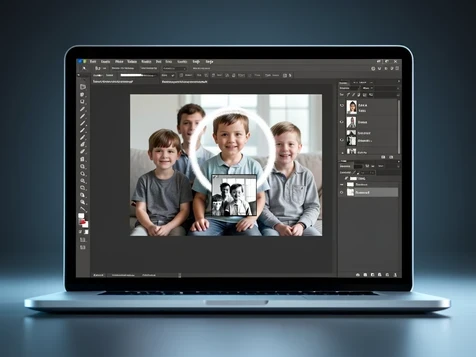
When an AI keeps changing the wrong sibling, do it by hand. Photoshop guarantees that only the face you choose moves, because you are the one drawing the selection.
- Open both the source photo and the family photo.
- Use the quick selection tool (W) to select only the face you want to move.
- Right-click, choose Layer via Copy, and rename the new layer 'face'.
- Drag that face layer onto the family photo and place it over the one face you are replacing.
- Drop the face layer opacity to 50 to line it up against the features underneath, then return it to 100%.
- Add a layer mask, brush black to erase the unwanted edges, and the surrounding people stay exactly as they were.
Make it blend: matching lighting, skin tone, and head angle
A swap reads as fake when the new face carries light from a different moment. Pull two photos shot at different times, under different lighting, and the mismatch almost certainly shows; closing that gap by hand takes much more advanced editing than the swap itself. So the easiest fix happens at capture: take your source from the same session and the same spot.
Judge the result against the wrong reference and you will chase your tail. Compare skin tone and head angle to the faces standing beside the swap, not to the original source photo, because those neighbors are what the eye checks first. And if your mask ate into part of the new face, switch the brush to white and paint it back rather than starting over.
Privacy when the faces are your family's
Uploading a group photo means handing a stranger's server pictures of your children and relatives. Tools vary wildly here. Pixlr states your creative output stays entirely yours and your content remains private. Faceover, by contrast, discloses on its App Store listing that usage data may be used to track you across apps and websites owned by other companies.
Read the data line before you upload, and lean toward tools that spell out how they handle your files. For a photo of a child, the safest path is the one that never leaves your machine: the offline Photoshop method uploads nothing at all.
Watch the 'free' trap
Some "free" apps mean free-to-try. Photoleap's face swap requires a Pro subscription through a 7-day trial that auto-renews into paid billing at $3.99 a month, or 20% off when paid annually at $47.99 a year. Genuinely free output does exist, though. Facewow advertises high-resolution results online that are completely free and carry no watermarks. Before you upload, confirm the free-tier and watermark reality so fixing one photo does not quietly start a recurring charge.