
Face swapping two photos in ChatGPT: prompts, labels, and refusal fixes that actually work
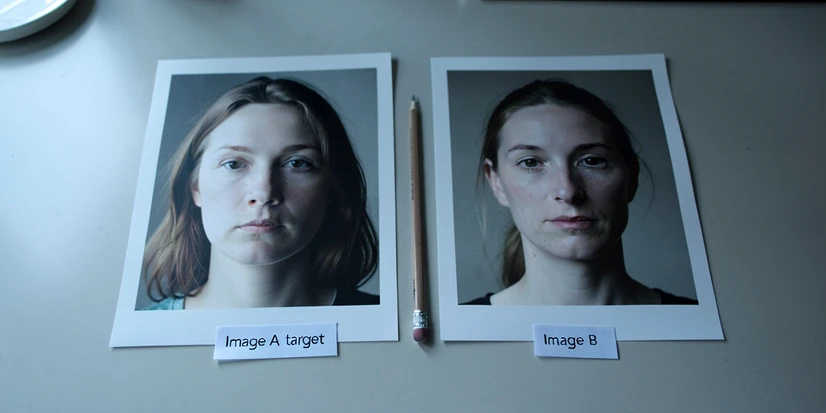
Open a chat with GPT-4o, upload the photo whose face you want to replace, then upload the face you want to insert. Label them in the same message as Image A (target) and Image B (source), and ask ChatGPT to swap them while matching lighting, skin tone, and expression. That single labeling habit, plus a specific prompt, fixes most of the unnatural blends people get on their first try. The rest of this guide covers the exact prompt template, why ChatGPT sometimes refuses, and what to do when the output still looks pasted on.
Can ChatGPT actually swap faces between two photos?
Yes. ChatGPT with GPT-4o image capabilities can perform a face swap natively when you upload both photos and write a clear prompt naming which face goes where. FutureBrainy's walkthrough confirms this is the supported workflow, and processing typically takes a few seconds to a minute depending on the version. You do not need a separate plug-in or a third-party site for the basic case.
Plan matters. ChatGPT Plus with GPT-4o is the recommended tier because the free plan enforces a daily maximum on image uploads, and once you hit it the chat stops accepting new files until the cap resets. If you are testing prompts iteratively, that ceiling can arrive fast.
There is one honest caveat worth setting up front. ChatGPT does not perform a surgical face-only edit. It regenerates the whole image, so the background, clothing, and body in your result may drift slightly from the original target photo. This is a platform behavior, not a prompt problem, and it is the reason a popular People Also Ask answer says ChatGPT cannot edit a photo without changing the face. The fix is to lean on the prompt to preserve those elements, not to expect pixel-identical retention.
What you need before you start
- Two images: a source (the face you want to insert) and a target (the photo whose face you want to replace).
- Both photos clear, high resolution, frontal angle, neutral expression, no glasses or hair covering the face.
- Similar lighting direction and similar face angles between source and target. This is the single largest predictor of a realistic blend.
- A ChatGPT account with image upload capability. Plus with GPT-4o is the practical minimum if you plan to iterate.
- Files in JPG, JPEG, PNG, or WEBP. If you fall back to EaseMate AI later, keep individual files under 10 MB.
Step-by-step: the ChatGPT face swap workflow
- In a fresh ChatGPT chat, click the image upload control (the + or paperclip icon) in the message input bar.
- Upload the target photo. In the same message, write: This is Image A (target). The face in this photo will be replaced.
- Upload the source photo. Add: This is Image B (source). Use this face for the swap. The Image A / Image B convention is the labeling trick FutureBrainy popularized, and it is the single habit that eliminates most confusion errors.
- Below the labels, paste the prompt template (next block). Keep it in the same message as the uploads.
- Submit and wait. A few seconds to a minute is normal.
- Hover the generated image, click the download icon, save to your device. If the result is off, refine in a follow-up message instead of repeating the same prompt.
Copy-paste prompt template
Using Image A as the target photo, replace the face of the [short visual description, for example: woman with shoulder-length brown hair on the left] with the face from Image B. Match the lighting direction, skin tone, and expression of Image A. Blend the jawline and hairline naturally so the result looks photographic. Keep the background, clothing, and body of Image A unchanged.
Two things make this template work. First, it tells ChatGPT which face to replace, which avoids the common failure where the wrong person gets edited. Second, it asks for lighting and skin-tone matching explicitly, which gives the regeneration step a target to aim at instead of a generic average.
Iterating instead of restarting
If the first output has a skin-tone mismatch or a hard seam at the jaw, do not start a new chat. Reply in the same thread with something tight: Adjust the skin tone of the inserted face to match the lighting and complexion of Image A, or Soften the jawline blend so the transition is not visible. Staying in the same chat preserves the image context and usually gets you to a usable result within two or three rounds.
Why ChatGPT sometimes refuses, and how to rephrase
ChatGPT will block a face-swap request when the prompt looks like it could impersonate a real person or produce misleading content. This is the gap competitor walkthroughs skip. The refusal is not a bug; it is OpenAI's usage policy reacting to a signal in your wording.
Three triggers cause most refusals: naming a celebrity or public figure explicitly, asking for output that could be mistaken for a real photograph of that person, and language that implies the goal is deception (the words fake, pretend to be, or make it look like aimed at a named individual). Repeating the same prompt verbatim after a refusal does not change the outcome and can tighten restrictions on the rest of the session.
Compliant rephrasing is usually small. Replace the name with a feature description (a man with a salt-and-pepper beard and round glasses), and add a creative frame the model can recognize as low-risk: for a fictional movie poster concept, for a personalized birthday card, for a stylized illustration. The face you want is still implied by your reference image, but the prompt no longer reads as an impersonation request.
Copyright and fair use still apply when the source or target shows a public figure or branded content, even when the prompt passes policy. Tool acceptance is not a license.
| Refused prompt | Compliant rewrite |
|---|---|
| Swap the face in Image A with [Celebrity Name] from Image B. | Using Image A as the target, replace the face with the face from Image B (a man with short dark hair and a goatee). Frame this as a fictional movie poster concept. |
| Make it look like a real photo of [Public Figure] at the beach. | Compose a stylized illustration where the face from Image B replaces the face in Image A, keeping the beach background. Treat the result as concept art. |
| Pretend this is [Celebrity] and put their face on my body. | For a personalized birthday card, place the face from Image B onto the figure in Image A. Match lighting and expression. Keep the result clearly artistic. |
Common mistakes and how to fix them
Mistake 1: mismatched lighting or face angles
When the source face is lit from the right and the target body is lit from the left, the model has no way to invent consistent shadows on the new face. The same applies to angle: a three-quarter source pasted into a frontal target forces the regeneration step to fabricate cheek and jaw geometry that did not exist in either input. Fix it before you upload, not after. Pick photos with the same lighting direction, similar shadow placement, and roughly matched head pose.
Mistake 2: a vague or minimal prompt
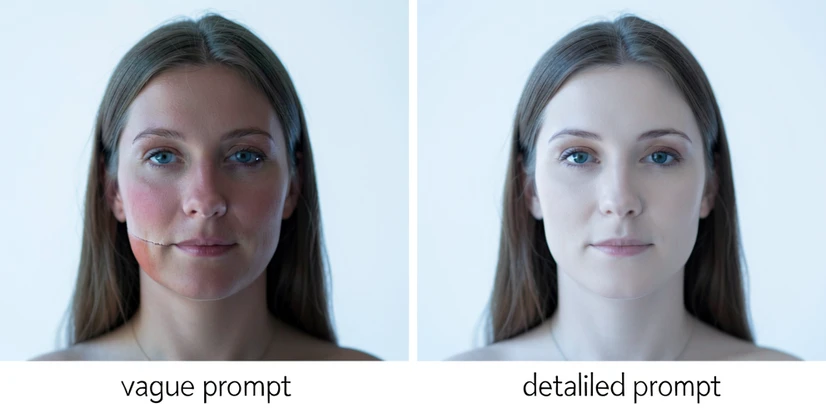
Swap the faces leaves every important decision to the model: which face is which, how to handle skin tone, what to do with the background. The output usually reflects that ambiguity. Use the full template above and name the images explicitly.
Mistake 3: low-quality or obstructed faces
Face swapping depends on the model identifying landmarks (eye corners, nose, mouth, jawline) before it can blend. Blur, motion, sunglasses, masks, and hair across the cheek hide those landmarks, so the blend either fails or smears. EaseMate's documentation makes the same point about its own pipeline. Upload sharp, unobstructed images.
Mistake 4: cluttered target backgrounds
A busy background bleeds into the boundary the model has to redraw around the new face. You will see artifacts at the hairline and behind the ears. Crop tighter or pick a target with a calmer backdrop.
When ChatGPT isn't enough: two dedicated alternatives
Sometimes the policy filter blocks a legitimate creative use, or the regeneration drifts too far from the original composition. Two tools are worth keeping in reserve, and they cover different needs.
EaseMate AI
EaseMate AI is a GPT-4o-powered face swap tool that gives you 30 free credits after login, no watermark on free outputs, and PNG output. It accepts JPG, JPEG, PNG, and WEBP up to 10 MB per file. Reach for it when you want a clean, predictable swap without writing a prompt.
Higgsfield AI
Higgsfield AI gives 5 free face-swap generations every day, with the limit resetting roughly 24 hours after your first swap. Generation takes 30 seconds to 2 minutes depending on subscription and queue. The differentiator is cross-style support (photos, paintings, 3D models) and an Easy Export for Animation feature that turns a still swap into a short video.
Pick EaseMate when privacy and a clean no-watermark output matter more than features. Pick Higgsfield when you want to swap a face into a non-photographic style or animate the result. Both use specialized face-detection pipelines, which often produces more consistent edge blending than ChatGPT's full-image regeneration.
Privacy, consent, and commercial use
Data retention varies tool by tool, and so do the rules for selling what you make. Read these before you upload anyone else's photo.
EaseMate AI privacy policy: "To ensure your privacy, the files you uploaded will be deleted from our server after processing. Therefore, your information or data will never be accessed by others."
Higgsfield AI commercial-use policy: "Yes, you have the right to use your generated content for marketing, advertising, or any other business-related purpose, is included with all paid Pro plans." Free-tier outputs are not licensed for commercial use.
Three rules apply across every tool in this guide. Get explicit consent before face-swapping someone who is not you. Respect copyright and fair use when the photo shows a celebrity, a copyrighted character, or branded content. And do not use ChatGPT outputs to deceive or impersonate real individuals; OpenAI's platform policies prohibit it, and the legal exposure sits with you, not with the model.
Treat face swapping as a creative tool with a few sharp edges. The Image A / Image B convention, a specific prompt, and a willingness to rephrase when policy pushes back will get you a usable result in most ChatGPT sessions. When it doesn't, EaseMate and Higgsfield fill the gaps without forcing you to learn Photoshop.
wait, does this need plus or does the free tier handle it too? i tried uploading 2 photos and it just stopped letting me add files after the second one
free tier has a daily image cap, you'll hit it fast iterating. idk the exact number
ngl been on plus for a month and the uploads still feel slow some days