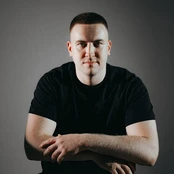
Upload the face you want to use and the photo you want to place it in — the AI handles alignment, blending, and lighting automatically.
LIVEDROP / DETECT / SWAPCTA: act now
03 / procedure
How to Replace a Face in a Photo
Three straightforward steps — upload, select, and download your finished image.
01
Upload the target photo
Click the upload area and select the photo that contains the face you want to replace. The image loads into the editor and the AI immediately detects the face region — you will see a highlight around it confirming detection.
✓
02
Upload the source face
Add the photo containing the face you want to insert. Use a clear, front-facing image for the sharpest result. The AI extracts the face automatically — no manual cropping or masking needed.
✓
03
Run the replacement
Press the swap button. The AI aligns the source face to the target pose, matches skin tone and lighting, and blends the edges. The result appears in the preview panel within moments.
✓
04
Download your image
Review the result in the preview. If it looks good, click Download to save the finished photo to your device at full resolution, ready to share or print.
✓
05 / metrics
What This Face Replacement Tool Does
center_focus_strongAutomatic face detection
The AI locates every face in the target photo without manual selection, so you skip the tedious step of drawing a mask or marking a region.
rotate_rightPose and angle matching
The source face is warped to match the head angle and tilt of the target, keeping the result consistent even when the two photos were taken from different directions.
paletteSkin tone blending
Color and brightness are adjusted at the boundary so the inserted face matches the lighting conditions of the target scene rather than looking pasted on.
photo_libraryWorks on any photo type
Replace faces in personal snapshots, group shots, formal portraits, meme templates, or holiday card photos — the tool is not limited to a single image category.
publicNo app download required
The entire process runs in your browser. There is nothing to install, and it works on desktop and mobile without switching devices.
groupSingle-face and multi-face support
Choose to replace one specific face in a group photo or swap all detected faces at once, giving you control over which subjects are changed.
high_qualityHigh-resolution output
The downloaded image retains the resolution of the original target photo, so the result is suitable for printing, posting, or further editing.
imageJPEG and PNG input
Both common photo formats are accepted for the target and source images, covering the output of virtually every smartphone camera and photo editor.
06 / before vs after
Face Replacement Results
Casual to professional headshot
BEFORE
AFTER
Group photo with updated face
BEFORE
AFTER
Holiday card face insert
BEFORE
AFTER
07 / examples
Creative Ways to Use Face Replacement
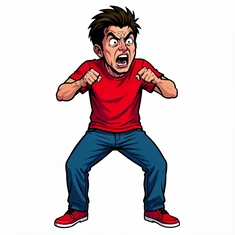
Face on a meme template
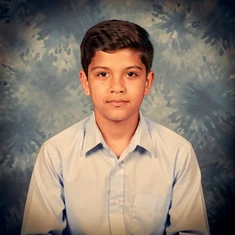
Yearbook photo replacement
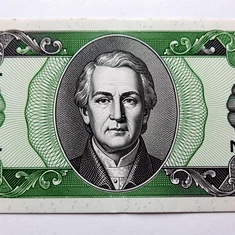
Put face on a currency note
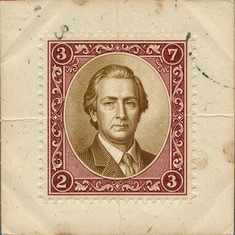
Superimpose face on a stamp
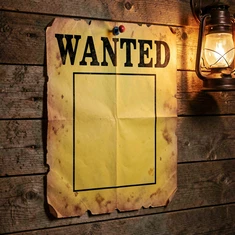
Face in a wanted poster
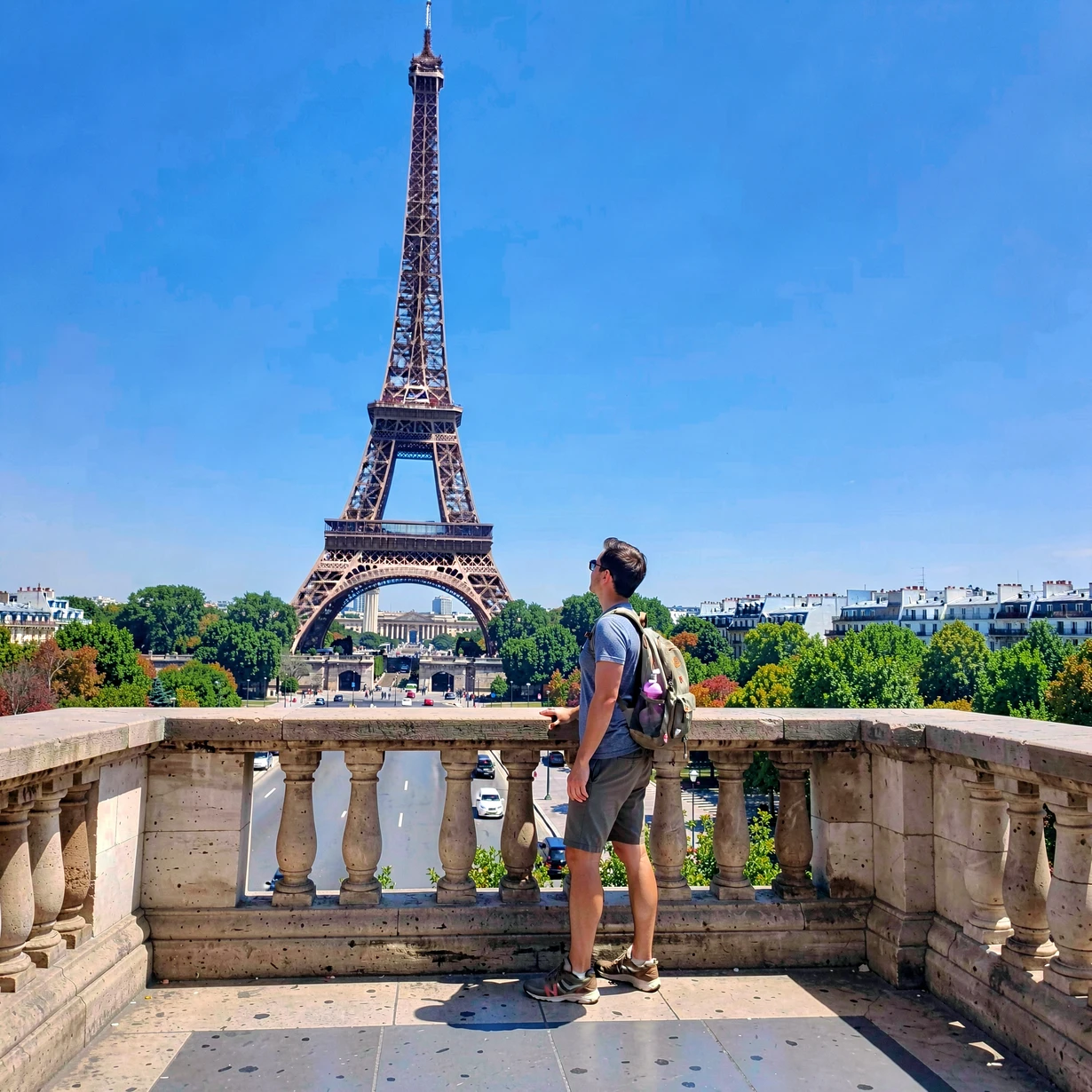
Insert face into a travel photo
10 / faq
Common Questions About Face Replacement
What kind of source photo gives the best face replacement result?
A clear, well-lit, front-facing photo with the face unobstructed produces the sharpest result. Avoid sunglasses, heavy shadows across the face, or extreme side angles in the source image — the AI needs visible facial landmarks to align and blend correctly.
Can I replace a face in a group photo without affecting the other people?
Yes. When multiple faces are detected, you can select which specific face to replace. The other faces in the photo remain untouched.
Does the tool work if the target photo has a face at an angle?
The AI handles moderate head tilts and three-quarter angles. Very extreme profiles — where less than half the face is visible — may produce a less accurate blend, so a source photo taken at a similar angle helps in those cases.
Is there a difference between face swap and face replacement in a photo?
Face swap typically exchanges two faces between two photos simultaneously. Face replacement inserts one specific face into a target image, which is what this tool does — you choose the destination photo and the face to place in it.
Will the replaced face match the lighting in the target photo?
The AI adjusts brightness and color at the face boundary to match the ambient lighting of the target scene. Results are most convincing when the source face photo has lighting that is broadly similar in direction to the target.
Can I add a face to a cropped or partially cut-off photo?
As long as the target photo contains a detectable face region — even partially cropped — the tool can replace it. If the face area is too small or cut off below the eyes, detection may not trigger.
Do I need to download an app to replace a face in a photo?
No app download is needed. The tool runs entirely in your browser, so you can replace a face in a photo online from any device without installing anything.
What image formats are supported for upload?
JPEG and PNG files are accepted for both the target photo and the source face image, covering the standard output of smartphones and most photo editors.