
Face swap in Canva for free using the Reface app
The free path to a face swap in Canva runs through the Reface app in the Canva Apps marketplace. Open Canva, click the Apps icon in the left sidebar, search for Reface or Face Swap, then upload a target image and a source face. Click Swap faces and the AI does the rest, no Canva Pro required. The other route, manual layering with Background Remover, is locked behind Canva Pro on desktop and is not the method to start with.
Everything below is verified against the current Canva interface as of the publication date. Free-tier features and watermark behavior on Canva can change without notice, so treat plan-related claims as a snapshot of what works today.
What you need before you start
Five minutes of prep saves a frustrating mid-process restart. The Reface app does the heavy lifting, but it is only as good as the inputs you give it.
- A Canva account on the free plan. That tier is enough for the Reface app method described in this guide.
- A clear, front-facing source face photo with even lighting. Higher resolution helps the AI map facial landmarks accurately.
- A target image: the photo whose face you want to replace, whether a stock body, a meme template, or a personal shot.
- Access to the Canva Apps marketplace. It is available inside the Canva editor on desktop browsers and inside the Canva mobile app on iOS and Android.
- Awareness of one limit: the manual Background Remover face swap method is gated behind Canva Pro on desktop. Free-plan users who chase that route hit a paywall partway through.
Pro tip: crop your source face photo tightly around the face before uploading. Excess background gives the AI more pixels to ignore and can pull its landmark detection off-center.
How to face swap in Canva using the Reface app, step by step
This is the primary free workflow. According to the Reface app listing on Canva, the swap runs entirely inside the editor: you upload two images, and the app applies the swap on click. Eight steps from blank canvas to finished image.
- Open Canva and start a design. Log in to your account, then create a new design at any size or open an existing one. The Reface app sits inside the editor, so you need a design open to reach it.
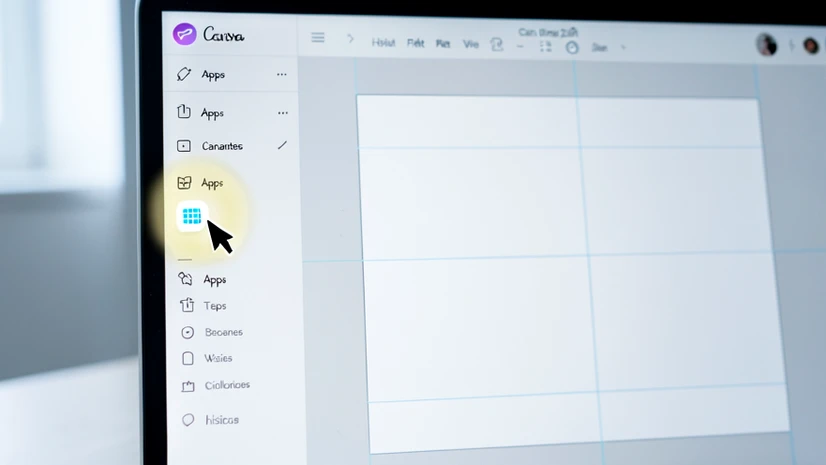
- Click the Apps icon in the left-hand sidebar. The icon is separate from the standard Canva tools (templates, photos, text) and is easy to miss on a first look. Look for the small grid or puzzle-style icon labeled Apps.
- Search for Reface in the Apps marketplace. Type Reface or Face Swap into the marketplace search bar. Open the Reface result to launch it inside the Canva editor.
- Upload or select your target image. This is the photo whose face you want to replace, the body or background that will receive the new face. Drag it in or pick from your Canva uploads.
- Upload or select your source face image. Use a clean, front-facing portrait with even lighting and as high a resolution as you have. This is the face that gets transplanted onto the target.
- Click Swap faces. The Reface app sends both images for AI processing. Time varies with image size and current server load, so a few seconds of waiting is normal.
- Review the result inside the app. Look at edges of the swapped face, skin tone match, and the angle of the head. If something is off, the next section covers the most common fixes.
- Place the image into your design or download it. Drop the result into your Canva canvas, or export directly. Before sharing the file publicly, zoom into the corners and edges and confirm whether a watermark was added on download.
If the Reface app stalls or refuses to load on mobile, switch to the Canva desktop browser version. Apps marketplace integrations tend to load faster and run more stably there, and the swap output is identical.
Why your face swap might look wrong, and how to fix it
Most face swaps that look fake fail for one of four reasons. The mechanics matter, because the fix depends on which stage of the pipeline broke.
Skin tone or lighting that does not match
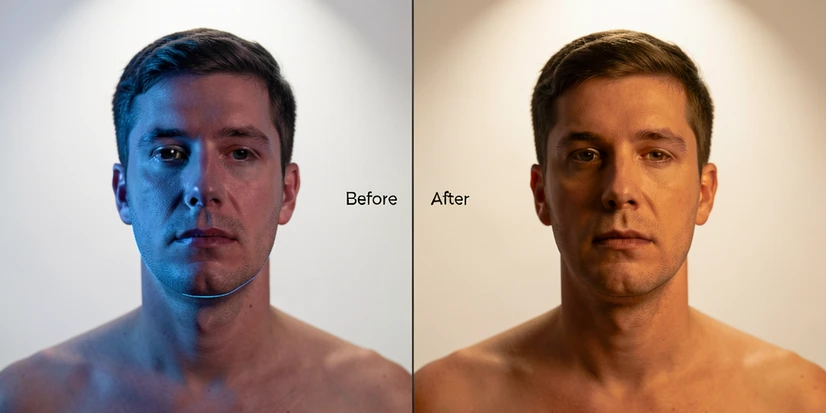
AI face swap blends pixels from the source face onto the geometry of the target head. It does not relight the face. If the source photo was shot in cool indoor light and the target was shot in warm outdoor sun, the swapped face keeps its original color cast and the seam shows. Fix it inside Canva: select the swapped image, open Edit image or Adjust, and nudge brightness, contrast, warmth, and saturation until the face sits inside the target's lighting. A subtle color filter often does more than aggressive sliders.
Misalignment or a processing failure
Before swapping, the AI runs a landmark-detection pass: eyes, nose, mouth, jawline. A blurry, angled, or low-resolution source photo gives that step too few high-confidence landmarks, so the face lands rotated, slid sideways, or rejected outright. Use a high-resolution, front-facing portrait with even lighting as the source. If the target face is at an odd angle, match it: tilt of the source photo within roughly ten degrees of the target keeps the landmarks lined up.
Cannot find the Reface app
The Apps section is its own panel, not part of the standard Canva toolset. Many readers scroll past it on the sidebar because it is unlabeled at a glance. Click the Apps icon directly in the left-hand sidebar, then use the marketplace search bar for Reface or Face Swap. The app appears as a result with the Reface branding.
Feature missing on your device
Older builds of the Canva mobile app sometimes ship without the Apps marketplace turned on, or with a thinner app catalog. If Reface is nowhere to be seen on phone, update Canva from the App Store or Play Store, force-quit and relaunch, or open Canva in a desktop browser instead.
Pro tip: save the raw face-swap output as its own element in your Canva design before applying any color adjustments. If your edits go too far, you can revert to the clean swap without redoing the upload.
Is Canva face swap really free? Free plan vs Canva Pro explained
Short answer: yes, the Reface app route is free. Longer answer: the word "free" hides three different things readers actually want to know about, so it is worth pulling them apart.
| What you want to do | Plan required | Notes |
|---|---|---|
| Use the Reface app for face swap | Free Canva account | Available in the Canva Apps marketplace, accessible to free-plan users (verified at publication). |
| Manual face swap with Background Remover | Canva Pro (desktop) | Background Remover is gated behind Pro on desktop. Not viable on the free plan. |
| Use Canva at all (any method) | Free or Pro account | A Canva account is mandatory. The editor and Apps marketplace are not usable without sign-in. |
| Download face-swapped image | Free or Pro | Free-plan watermark behavior can change. Inspect corners and edges of the export before sharing. |
On watermarks specifically: the Canva watermark policy is something to verify each time you export, since free-plan rules around premium-asset overlays shift. If you only used your own uploads and the Reface app output, expect a clean download, but check anyway. A photo face editor no watermark expectation is reasonable here, but not guaranteed forever.
What happens to your face photo after you upload it to Canva?
Uploading a face photo to any AI tool is a real privacy decision, and it deserves a straight answer rather than a shrug. Two parties touch the image in this workflow: Canva itself, and Reface as a third-party app inside the Canva marketplace.
Canva's handling of uploaded image data is governed by its official privacy policy, which is the right place to read current retention terms before a sensitive upload. Reface is a separate company integrated into the marketplace, which means it operates under its own privacy terms for the images you pass through the app. Open the Reface app's listing inside Canva and review its policy link directly if data handling matters to you.
Two practical rules cover most cases. Do not upload photos of minors to any AI face swap tool, including this one, since the data flow through third-party AI services is rarely something a parent or guardian would consent to. And keep sensitive personal images, like ID photos or anything tied to a private account, out of casual AI tools entirely.
Face swap in Canva on iPhone and Android
The Canva mobile app on iOS and Android includes the Apps marketplace, so the Reface workflow is reachable on phone (verified at publication). The steps are the same as the desktop version once you locate the entry point, which is where the UI differs.
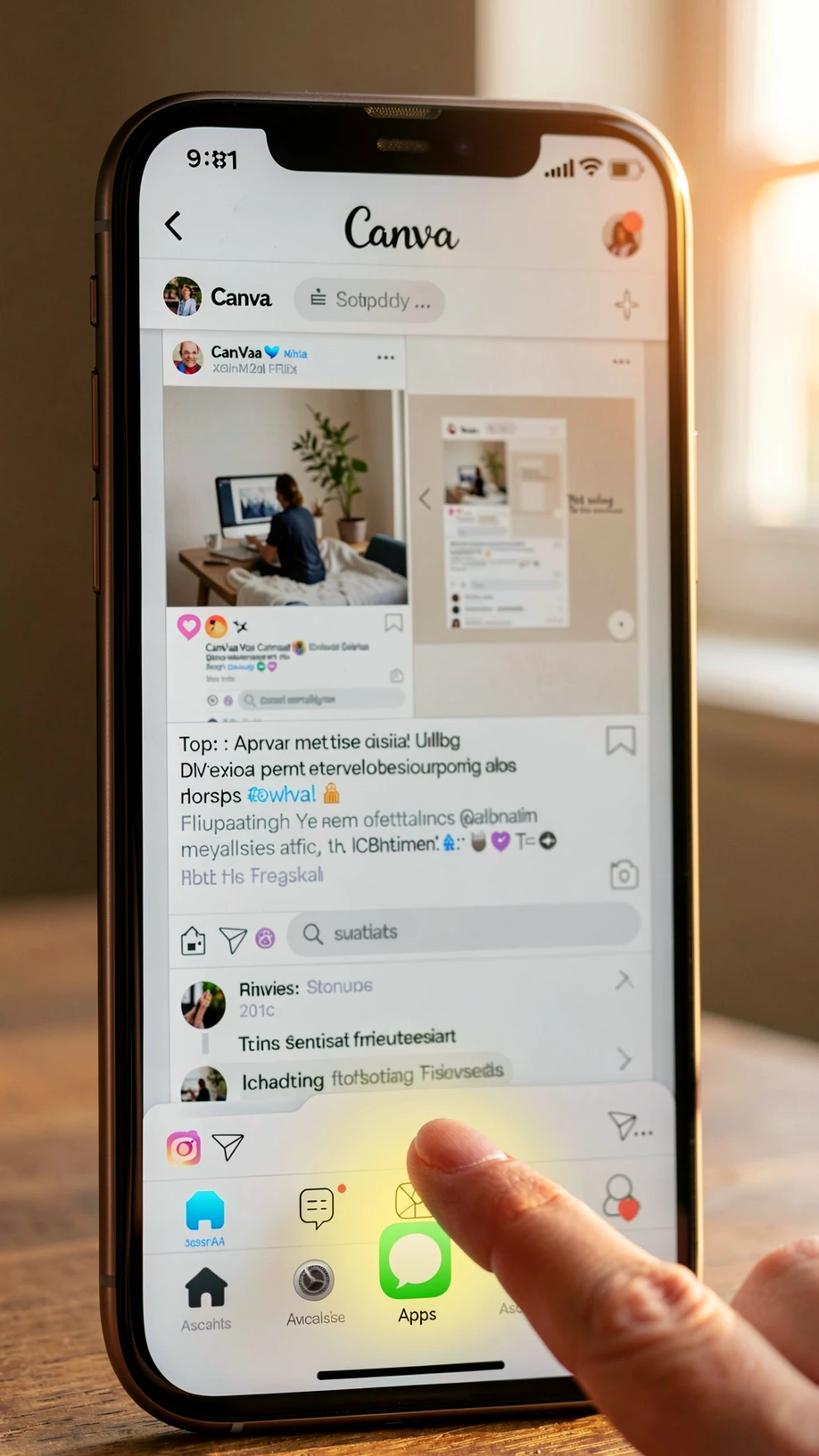
- On mobile, the Apps section often lives in the bottom toolbar of the editor rather than a left-hand sidebar. Tap the toolbar to scroll through icons until Apps appears, or open the plus-style add menu and look for an Apps entry there.
- Once Reface is open on mobile, the upload flow is identical: target image first, source face second, then the swap button.
- Older devices and outdated Canva app versions can load marketplace integrations slowly, or skip rendering some elements. If Reface refuses to load on phone after an update, fall back to the desktop browser. The output is the same.
- Mobile uploads default to the device camera roll. Crop the source face on your phone first if you can: a tighter crop avoids accidentally pushing a low-resolution full-body shot into the AI.
Quick use-case ideas: what to make with your Canva face swap
Once the workflow is muscle memory, the Reface app turns into a five-minute creative tool. A few prompts to start with.
- A birthday card placing a friend's face onto a goofy stock-photo body for a personal joke that prints well at A5 or square format.
- A meme remake using a viral template, with the face of someone in your group chat in place of the original. The Canva text tools handle the caption.
- A team photo rescue when one person missed the shoot. Swap their face onto a stand-in body from another shot, sized to match.
- A themed costume post for social media: your face on a holiday character, a movie poster, or a sports avatar.
- A small-business promo graphic where the founder's face sits on a polished stock-photo body, useful when professional photography is not in budget.
Whichever idea you start with, the same input rule decides the result: front-facing source, even light, decent resolution. Get that right and the rest of the Canva face swap workflow is mostly clicking through.
ok this actually worked for me first try, did it in like 4 minutes for a birthday card. wasn't expecting it to be free tbh
wait so reface is just sitting inside canva now? thought it was a separate app
yeah you click the apps icon on the left and search. took me forever to find that icon lol
reading on lunch, will try later. does the free download have a watermark or not
no watermark on mine, clean png. used my own selfie and a stock body, came out at 2300 wide
i tried with a side angle photo and the face came out rotated, looked weird