
Build a professional headshot with face swap: tools, photo rules, and privacy guide
Face swap drops your face onto a professional body and background template in seconds, using one front-facing selfie. An AI headshot generator does something different: it trains a small model on 10 to 15 of your photos and synthesizes a new portrait. For a LinkedIn or resume photo you can have ready in minutes, free face swap tools like Pixlr, Dzine, and Higgsfield are the shortest path. If you need higher likeness across multiple outfits and backdrops, a paid generator like HeadshotPro or BetterPic gives a better result, at the cost of price, time, and a 30-day data retention window.
Face swap vs. AI headshot generator: which approach is right for your headshot?
These are two distinct technical paths that often get blurred under the same marketing label. Face swap takes one source photo (your face) and one target template (a professional body and background) and blends them in seconds. An AI headshot generator ingests 10 to 15 varied photos of you, trains a model on your face, then synthesizes a fresh portrait that did not exist before.
Speed pulls you toward face swap. Likeness accuracy and style variety pull you toward generators. If you have one clear selfie and a target template you like, face swap finishes before your coffee cools. If you want 20 to 120 portraits across several backdrops, a generator earns its price.
Inside Dzine the wording matters: a head swap moves your full head, hair and ears included, onto the body template, while a face swap keeps only your facial features and inherits the template's hair. For a professional headshot where you want recruiters to recognize you from your real haircut, head swap is usually the safer choice.
Quick decision rule
- Result needed in under five minutes, one decent selfie on hand: pick face swap (Pixlr, Dzine, Higgsfield).
- Need 20 to 120 portraits across several styles, willing to wait an hour or more: pick an AI headshot generator (HeadshotPro, BetterPic, Facetune).
- Want your real hairstyle preserved: prefer Dzine head swap or a generator that asks for personal details, not a strict facial-features-only swap.
What you need before you start: photo requirements that determine output quality
Most rejected uploads and most ugly outputs come from the same handful of photo problems. The face has to be big enough in the frame for the model to extract landmarks, and the features have to be visible enough for it to map identity. Skip the prep and the rest of this guide will not save the result.
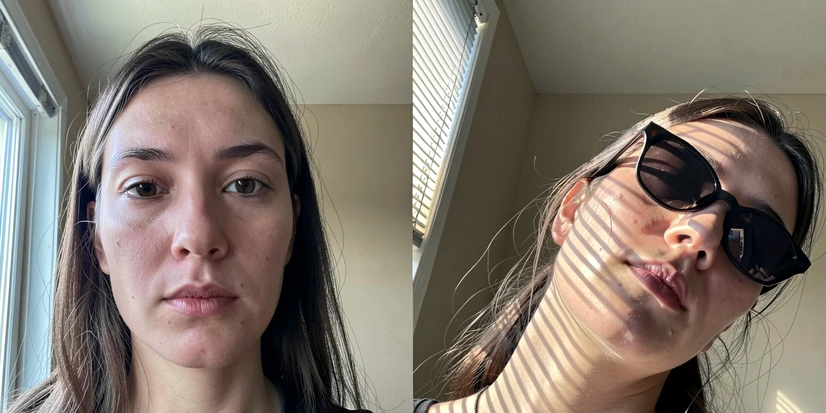
- Face occupies at least 20% of the frame, per HeadshotPro's stated minimum on cnet.com, because the model needs enough pixels to extract facial detail.
- Look directly at the camera so facial landmarks line up cleanly with the target template.
- Remove sunglasses, hats, and anything covering eyes, nose, or mouth: covered features break identity mapping.
- Use daylight or a well-lit room, no harsh shadows splitting the face.
- Pick a clean or neutral source background to make blending easier on a corporate target.
- JPG, PNG, or WEBP, up to 10 MB per file, per the format limits commonly listed across these tools.
- For face swap (Pixlr, Dzine, Higgsfield): one qualifying photo is enough.
- For model-training tools (HeadshotPro, Facetune): plan to upload 10 to 15 varied photos.
Method 1: Pixlr AI Face Swap, free and no sign-up
Pixlr is the fastest free path. The AI Face Swap tool runs in the browser, requires no account, and outputs a PNG in a few seconds. Pixlr also states on its product page: "With our tool, your creative output is entirely yours to own, ensuring your content remains private and secure."
- Open the Pixlr AI Face Swap tool in any browser.
- Upload your source photo: front-facing, face filling at least 20% of the frame, no sunglasses.
- Upload a target template with a neutral background and business attire.
- Click Run Face Swap and wait the few seconds the model needs.
- Inspect the result on screen: jaw line, eye reflections, skin tone at the neck.
- Click the result to download as PNG.
One detail lifts Pixlr output noticeably: pick a target where the light direction roughly matches your selfie. If you were lit from the left, choose a template lit from the left. Mismatched light is the single most common cause of a visible seam at the jaw.
Method 2: Dzine Head Swap, free credits, no watermark
Dzine is the right tool when you want your real hairstyle preserved. Its product page distinguishes a head swap (full head with hair and ears) from a face swap (features only). The free tier hands out credits and lets you download without a watermark, which is rare among free face swap services.
- Open the Dzine Chat Editor and upload the base photo: a professional body shot that defines pose, framing, and background.
- Upload your reference image, a clear front-facing photo of your face and head.
- Type a prompt describing the look, for example: professional corporate headshot, neutral grey background, business suit, natural lighting.
- Click Generate and review the instant output.
- Download the result; no watermark on the free tier.
If the output blends your face but trims your hair, you ran a face swap instead of a head swap. Switch the operation in the editor and regenerate.
Method 3: Higgsfield AI Face Swap for realistic lighting
Higgsfield is the choice when source and target lighting do not quite match and you cannot reshoot. Its blog explains that the tool uses generative identity embedding rather than a 2D overlay, which lets it relight your face to fit the body template's light direction and texture. Sign-up is required; check current free tier on the site at the time you use it.
- Log into HiggsfieldAI and open Face Swap under Create Image or Apps.
- Upload your base image: this defines pose, light direction, and framing.
- Upload your reference image: a front-facing, well-lit photo of your face.
- Click Generate; the result lands in seconds.
- Inspect the face-to-neck boundary specifically; this is where lighting coherence either works or fails.
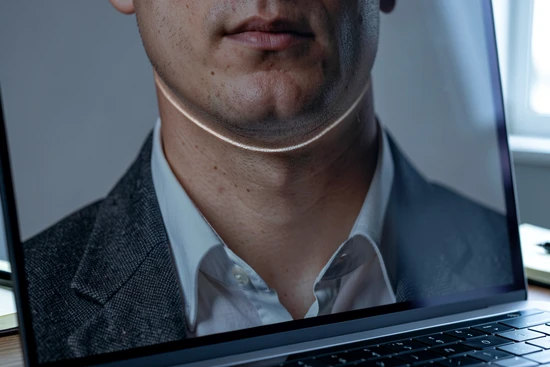
Method 4: Fotor AI Headshot Generator, HD with 24-hour deletion
Fotor is a generator, not a face swap, so the workflow is different: pick styles up front, upload one selfie, get HD outputs in seconds. Fotor states on its feature page that "All uploaded photos are automatically wiped from our encrypted servers within 24 hours", the fastest deletion policy among the tools covered here. Fotor itself acknowledges that AI artifacts like extra fingers or odd eyes can show up in outputs.
- Click Generate a Headshot and choose gender (Male, Female, or Non-Binary).
- Pick 3 to 10 AI headshot styles relevant to your industry.
- Upload one selfie or life photo: front-facing, well lit, face fully visible.
- Preview the variants and download in HD.
- Inspect each candidate before using it professionally; eyes and hands are where Fotor itself flags risk.
Method 5: HeadshotPro for highest likeness accuracy
HeadshotPro is the option when likeness matters more than budget. The tool is a paid generator with strong social proof: rated 4.8 out of 5 from 3,312 reviews, with 17,943,292 headshots created for 196,987 customers, all per its homepage. CNET's reviewer reports turnaround as fast as 10 minutes, with a 1 to 3 hour typical wait.
- Sign up and pick a plan: 40 headshots for $29, 100 for $39, or 200 for $59 per cnet.com (verify pricing on the site at publication).
- Upload at least 15 photos: face filling at least 20% of frame, looking at camera, varied angles and lighting, clean background.
- Enter personal details (name, age, ethnicity, eye color, gender) so the model produces an accurate likeness.
- Choose backdrop and outfit options that match your industry.
- Wait for processing: as fast as 10 minutes, often 1 to 3 hours.
- Receive headshots by email with a guaranteed 3 to 6 profile-worthy results, per CNET.
Two policy points worth pinning: HeadshotPro states it does not use uploaded photos to train its algorithm, and that "Your details are deleted in 30 days or less". Team discounts run up to 60% per the site, and there is a money-back option if results miss the mark.
Privacy comparison: how long does each tool store your face photo?
Retention is the question competitor pages skip. The numbers below come from each tool's own privacy or product page, which means policies can change. Check the live page before uploading.
| Tool | Stated retention | Training use of your photos | Source |
|---|---|---|---|
| Fotor | Wiped within 24 hours from encrypted servers | Not stated as training material in cited source | fotor.com feature page |
| HeadshotPro | Deleted in 30 days or less | Does not use uploads to train its algorithm | headshotpro.com / cnet.com |
| BetterPic | Stored max 30 days after delivery, then permanently deleted; AES-256 encryption | "We never sell your data or use your images to train AI models" | betterpic.io |
| Pixlr | Output stays yours, content private and secure per product page; numeric retention not published | Not stated in cited source | pixlr.com/face-swap |
| Higgsfield | Retention not publicly documented in cited sources | Not stated in cited sources | Check higgsfield.ai privacy page |
| Dzine | Retention not publicly documented in cited sources | Not stated in cited sources | Check dzine.ai privacy page |
Practical takeaway: if privacy is the top filter, Fotor's 24-hour wipe is the shortest documented window, and HeadshotPro and BetterPic anchor the 30-day tier with explicit no-training pledges. If a tool's retention is not published, treat the upload as if it could persist and decide accordingly.
Why your headshot looks wrong, and how to fix it
Six failure modes account for almost every bad output. Each one has a single mechanical cause and a fix that costs nothing but a re-upload.
- Tilted or partially obscured face: the model cannot map facial geometry, so blending fails at the cheek and jaw. Fix: shoot a level, full-face photo looking straight at the lens.
- Face under 20% of the frame: there is not enough facial detail for the model to work with. Fix: crop tight before uploading.
- Sunglasses or accessories over eyes, nose, or mouth: identity markers are degraded, so the result will not look like you. Fix: use a photo with eyes, nose, and mouth fully visible.
- Mismatched lighting between face and body template: the seam at the neck becomes obvious. Fix: pick a template whose light direction matches your selfie, or use Higgsfield, which relights the face to fit.
- Plastic skin or uncanny valley: over-smoothing from AI, often worsened by a heavily compressed input. Fix: feed the tool a high-resolution source and pick outputs at 4K (BetterPic) or HD (Fotor).
- Wrong eye color or hair color: the model invented features the input did not constrain. Fix: in HeadshotPro, fill out the personal details fields; or switch from a generative tool to a face swap tool that preserves your real features.
If two failure modes appear together, lighting and resolution, regenerate before tweaking. AI tools rarely improve a borderline output through iteration; they reward a better input.
Will a face-swap headshot pass recruiter scrutiny on LinkedIn?
No tool guarantees recruiter acceptance, and quality swings hard with input photo quality. What matters is whether the result reads as photographed rather than generated on a quick scroll, and on a slow zoom.
What gives an AI headshot away
- Plastic, pore-less skin texture under flat studio-grade lighting.
- Symmetrical, perfectly centered lighting with no asymmetry on the cheekbones.
- Skin tone at the neck that does not match the face above the jaw.
- Eye reflections that do not agree on light source position, or no catch-lights at all.
What helps it pass
- Lighting direction that matches between face and body, with one dominant key and gentle fill.
- Consistent skin tone across face, neck, and visible chest area.
- A natural background, not a pure white or gradient backdrop.
- A few preserved imperfections: a stray hair, a faint asymmetry, real skin texture.
Before saving, zoom to roughly 200% and inspect three regions: eye reflections, skin texture along the jaw, and hair edges where strands meet the background. If the result looks too perfect, retry with a more naturally lit source photo rather than a polished studio selfie. Counterintuitively, a slightly imperfect input often produces a more convincing output.
Quick comparison: which tool to use based on your situation
| Situation | Best tool | Why |
|---|---|---|
| Free, no sign-up, result in seconds | Pixlr AI Face Swap | Browser-based PNG output, no account required |
| No watermark on free tier | Dzine Head Swap | Free credits, instant download, hairstyle preserved |
| Best lighting realism | Higgsfield | Generative identity embedding instead of 2D overlay; sign-up required |
| Multiple styles from one selfie, fastest data deletion | Fotor | HD output in seconds; uploads wiped within 24 hours |
| Highest likeness, willing to pay, money-back option | HeadshotPro | $29 to $59 plans, 10 minutes to 3 hours, 30-day deletion, no training use |
| 4K output, 150+ styles, team discounts | BetterPic | 20 to 120 headshots in 1 to 2 hours, 30-day deletion, no training use |
| Mobile app with model training | Facetune | 10 to 15 photos, ~30 minute training, VIP free trial |
If you only remember one rule: match source-photo lighting to target-template lighting before you press Generate. It removes the most common reason a face-swap headshot looks fake.