
Head size mismatch after a face swap: a cause-first repair guide
Head size mismatch has six root causes, and each needs its own fix. Generic advice (use higher resolution, try a different photo) misses the point because the wrong fix for the wrong cause produces the same broken result. Identify the cause first: head outline mismatch, source-vs-target bounding box gap, low resolution, angle or expression difference, target face too small, or a software scale bug. Then apply the matching technique. The diagnostics below take roughly a minute and rule out five causes immediately.
What head size mismatch actually looks like (and why it happens)
There are two failure modes that get conflated. The first: the swapped facial features (eyes, nose, mouth) sit correctly on the target, but the head outline (hair, jawline, ears) still belongs to the original person. The second: the swapped face itself is genuinely scaled wrong relative to the target bounding box, so it looks shrunken or oversized inside an otherwise correct head.
Most tools labelled as head swap on landing pages do face-only replacement. They rewrite eyes, nose, and mouth, then leave the original hair, jawline, and ears intact. That is why the head outline never matches when you swap a round-faced source onto a long-faced target. The proportion error you are seeing is structural, not a model limitation.
Diagnose before you fix. Walk the six checks below in order. The first match wins.
Step 1: diagnose your specific cause
- Look at the head outline. If the hair, jawline, or ears in the output still belong to the original target person, the tool is doing a face-only swap (Fix A).
- Check for a grey or background-colored halo immediately around the new face. That ring means the source face was smaller than the target face area (Fix B).
- Zoom into the source photo. If you cannot clearly resolve individual eye, nose, and mouth detail, neither can the AI; treat the source as too low resolution (Fix C).
- Compare angles and expressions between source and target. A front-facing source on an angled target, or a wide-open-mouth source on a closed-mouth target, forces heavy warping (Fix D).
- Measure the target face inside the frame. If the face occupies a small fraction of the image (group photo, wide shot), landmark detection drops and placement drifts (Fix E).
- If the output is a video clip rendering the subject larger than the original when composited in After Effects, and you are using VisoMaster 0.1.3, the cause is a known software bug (Fix F).
Multiple causes can stack. A blurry, off-angle source photo placed on a tiny target face will fail in three ways at once. Fix the most severe first, re-render, then re-diagnose.
Fix A: head outline mismatch means switching tool scope
Most tools advertised as head swap only replace facial features and keep the original hair and jawline, which is documented hands-on in the peerlist comparison. PixNova AI and Remaker are named examples that market head swap and deliver face-only swap. Vidnoz is one of the few that performs a true head swap, replacing the full head including hair and jawline.
Before committing to a tool, run it through five criteria:
- Replacement area: does the output replace hair, ears, and jawline, or only the inner face?
- Neck and body alignment: does the new head sit naturally on the target neck, or does the seam betray a paste-in?
- Angle and pose consistency between source identity and target body movement.
- Lighting and color matching across the boundary, especially under directional light.
- Usability on full-body photos, not just headshots cropped tight.
Fix B: grey halo around the face means a GIMP heal pass
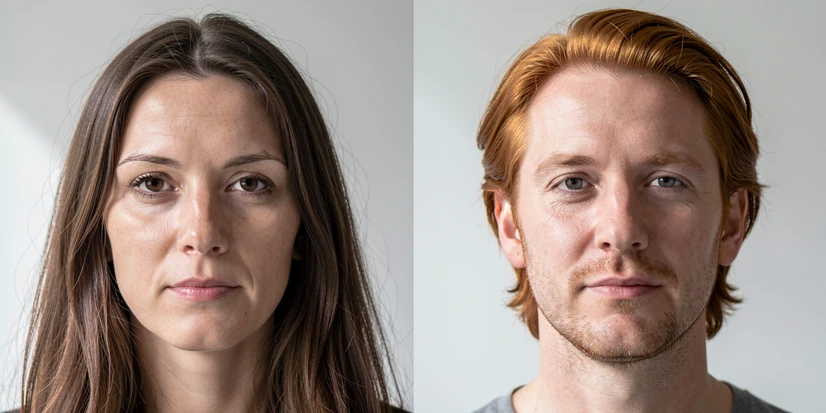
When the source face bounding box is smaller than the original target face area, the AI does not paint over the full original face region. The leftover ring renders as a grey or background-colored halo around the new face. The Faceswap forum thread documenting this case, where the developer torzdf (2830 posts, 161 answers) confirmed the fix, lives at forum.faceswap.dev: post-editing tools, not deeper model settings, are the right place to handle it.
The technique:
- Open the original target image in GIMP (or Photoshop) before running the swap.
- Select the heal tool (or Photoshop's content-aware fill) and paint over the original face area, sampling surrounding skin and background pixels inward to fill the region that the source face will not cover.
- Save the healed plate, then run the face swap on it. The new face now lands on a uniform background instead of a face-shaped hole.
- If the halo is already in your output, do the heal pass on the output image around the new face boundary as a salvage move.
Fix C: low resolution starves the landmark detector
Resolution drives landmark accuracy. Below the threshold, the model misplaces eyes and chin and silently rescales the swap to fit what it thinks it sees. The benchmark figures from kirkify.io make the cliff visible:
| Source resolution | Output quality | Notes |
|---|---|---|
| 2000×2000px | Excellent | Sharp facial features, natural-looking result. |
| 800×800px | Good | Slight quality drop, still convincing. |
| 300×300px | Mediocre | Face appears softened, fine detail lost. |
| 150×150px | Unusable | Blurry output, AI struggles to detect features. |
Aim for at least 800×800px, ideally 2000×2000px. Skip screenshots from video and heavily compressed JPEGs: the artifacts read as facial features to the detector and skew face size ratio estimation. Quick test before uploading: zoom to 100% and look for individual eyelashes and nostril shape. If you cannot see them, the AI cannot.
Fix D: pick a source whose angle and expression match the target
Face warping is the mechanism behind angle and expression errors. The model warps the source face to match the target pose; the bigger the gap, the more warping, and warping distorts proportions before identity. A front-facing source applied to a 45-degree target gets stretched along the visible axis, which is why the swapped face often looks subtly oversized on one side.
Selection criteria that prevent this category of error:
- Use front-facing source photos when the target is also front-facing.
- When the target is angled, find a source at a similar angle rather than correcting it later in post.
- Pick neutral or mild expressions in the source; extreme expressions (wide open mouth, exaggerated smile) force heavy warping that the model pays for in proportion accuracy.
- Avoid profile shots in either input unless both source and target are in profile.
Fix E: crop the target before swapping when the face is small in frame
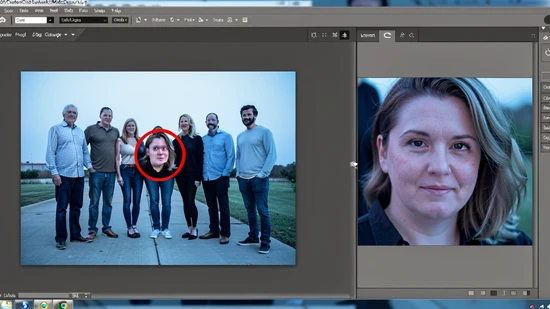
Group photos and wide shots break landmark detection. When the target face occupies a small fraction of the image, the detector has fewer pixels to anchor eyes, nose, and chin, so the swap is placed at an estimated position with an estimated size and looks visibly off.
Crop the target down so the face is large and clearly resolvable, then run the swap on the cropped plate. After the swap, composite the result back into the original image at the original position. This is a two-minute fix in any editor and removes the most common cause of correct face, wrong size on group photos.
Fix F: VisoMaster 0.1.3 scale bug and the clip-cutting workaround
If your output video clip composites larger than the original clip in After Effects, and you are running VisoMaster 0.1.3, this is a software bug, not a user error. The issue is documented at github.com/visomaster/VisoMaster/issues/36: the output renders the subject at an incorrect scale relative to the source clip, breaking 1:1 compositing.
Workaround: use the clip cutting method. Cut the affected segment, swap the cut, then place the swapped segment back over the original timeline at the original transform. Check the VisoMaster release notes for a newer version that patches the scale output bug before reaching for the workaround. No source image change, resolution bump, or angle correction will fix this case, because the bug sits downstream of the model.
When the AI cannot fix it: manual proportion correction
There is a trade-off the model cannot escape. Preserving the source identity proportions can look wrong on the target body. Adapting to the target body can distort the source face. When the swap lands somewhere inside that trade-off and you are unhappy, manual post-editing is the documented fallback the Faceswap developer recommends.
In Photoshop or GIMP: select the swapped face layer, hit Free Transform (Ctrl+T or Cmd+T), scale and reposition until the face matches the target head proportions, then blend edges with a soft mask at 30 to 50 percent feather. Keep transformations under about 8 percent scale change to avoid visible softening. In After Effects: apply the Transform effect or adjust the scale property on the face swap clip directly, keyframing if the proportion error drifts across frames.
Prevention: source image checklist before you swap
- Source resolution: 800×800px minimum, 2000×2000px ideal.
- Source angle: front-facing, or matched to the target angle.
- Source expression: neutral or mild.
- Image quality: sharp, well-focused, not a compressed JPEG screenshot from video.
- Target framing: crop so the face occupies a large portion of the frame before swapping.
- Tool scope: confirm face-only swap vs true head swap before starting, and pick by what you actually need replaced.
- Tool version: if using VisoMaster, verify whether the 0.1.3 scale bug is patched in your build before relying on the output for compositing.