
Put your face on Santa, an elf, or a full AI Christmas portrait
You can face swap a Christmas photo in under five minutes without any editing skill. In a browser, Media.io drops your face onto a Santa or elf template, while Pixlr swaps it onto a target photo you choose. On iPhone, the Christmas Santa AI Face Swap app handles it, and on Android the Christmas santa photo editor app does the same. For a generated portrait instead of a template, the viral ChatGPT prompt trend builds a realistic holiday image from one selfie. Every path here is free. The result depends almost entirely on one thing: the photo you start with.
What you need before you start
The tool matters less than the input. AI face detection works from the landmarks on your face, so anything that hides or distorts them sabotages the swap before it begins.
- A clear, front-facing photo in natural light, with no filters, sunglasses, heavy editing, or extreme head angles.
- A solo photo. Group shots work, but the AI has a harder time isolating each face cleanly.
- An internet connection for every browser tool, since Media.io, Pixlr, EaseMate AI, and ChatGPT all process in the cloud.
- iOS 13.0 or later for the Christmas Santa AI Face Swap iPhone app.
- A source file under 32 MB if you plan to use EaseMate AI, which caps uploads at that size.
If you have a minute to spare, take a fresh selfie just for the swap. Face the camera straight on, stand near a window for soft daylight, and switch off any beauty filter before the shot. A photo taken for this purpose beats digging through your camera roll for one that almost works.
Method 1: Swap onto a Christmas template in your browser (Media.io)
Want the fastest route with nothing to install? The Media.io AI Christmas Face Swapper runs in any desktop or mobile browser and finishes a template swap in minutes.
- Open the Media.io AI Christmas Face Swapper and upload your source photo. Stick to a clear, front-facing shot in natural light.
- Choose a Christmas character template: Santa Claus, Christmas elves, the Grinch, an anthropomorphic reindeer, or another holiday figure.
- Click Generate. The AI detects your face and blends it onto the template on its own.
- Preview the image, then download it. Basic use carries no watermark.
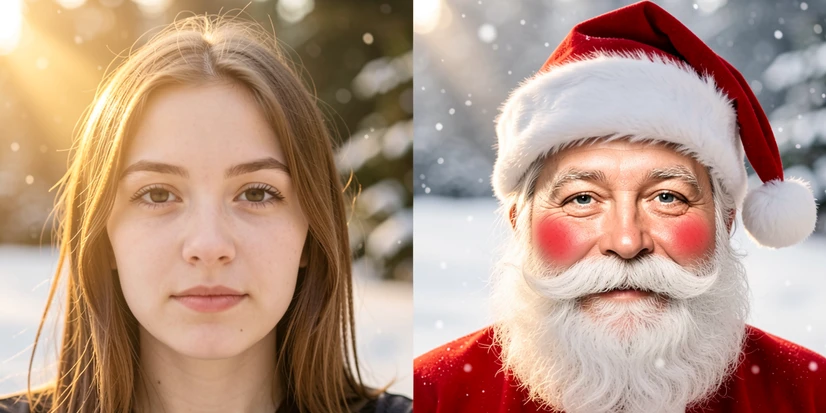
Media.io states that uploaded photos are processed securely and are not used for AI training without permission. Personal use is fully supported. If you intend to sell or commercially publish the result, review Media.io's licensing terms for AI-generated images first, since the free personal allowance does not automatically cover commercial work.
Method 2: Swap onto your own target photo (Pixlr)
Templates are quick, but they lock you into a preset scene. Pixlr's AI Face Swap tool lets you pick the target yourself, so your face can land on a specific Christmas photo you already have.
- Go to Pixlr and open the AI Face Swap tool. Nothing to download.
- Upload your source photo, the one holding the face you want to move.
- Upload the target photo, or pick one from the Pixlr template library. The target is where your face ends up.
- Click Run face swap. The blend finishes in a few seconds.
- Download the finished image. Pixlr saves it as a PNG file.
That PNG output has a quiet advantage. Its transparent-background support makes it easy to drop the face-swapped image straight into a Christmas card layout in any design tool. Pixlr also states that the creative output is entirely yours to own and that your content stays private and secure.
Method 3: The Christmas face swap app for iPhone
Searching specifically for an iPhone route? The Christmas Santa AI Face Swap app keeps the whole process on your phone, from upload to share.
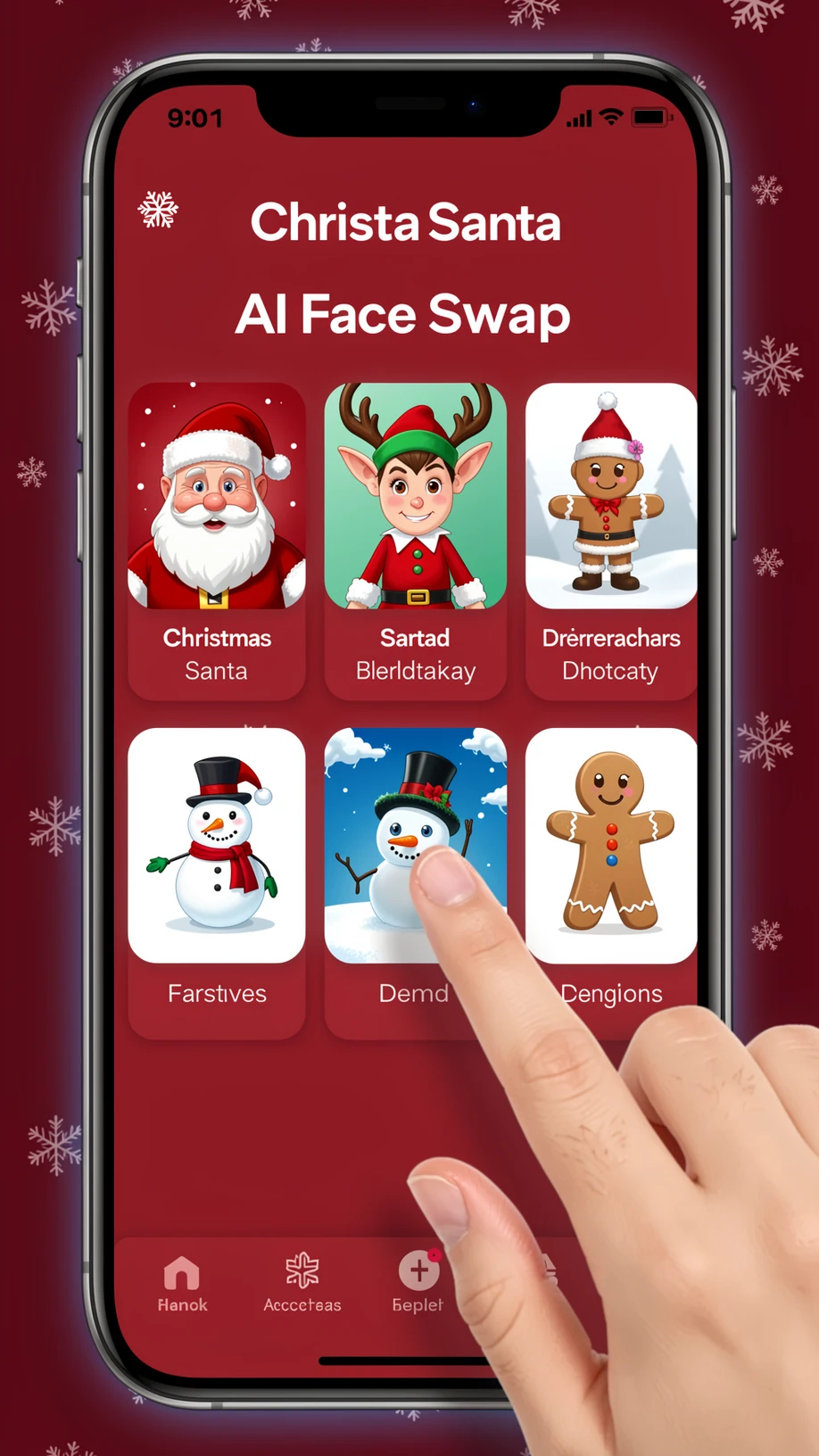
- Install Christmas Santa AI Face Swap by Naynesh Patel from the App Store. It needs iOS 13.0 or later, weighs 38.9 MB, and is rated 4+.
- Upload a photo from your camera roll inside the app.
- Pick a character: Santa, an elf, a reindeer, a snowman, or a gingerbread figure.
- Customize with Christmas filters, frames, snowflakes, holiday hats, borders, and stickers.
- Save the result to your camera roll, or share it straight to a chat or social feed.
Two details matter here. The app is built for family-safe holiday fun and will not swap the faces of celebrities or public figures. And its App Store privacy label reads 'Data Not Collected', meaning the developer gathers nothing: photos are never stored on servers, and the in-app history sits only on your device, where you can clear it whenever you want.
Method 4: The Christmas face swap app for Android
Android users get a near-identical path through the Christmas santa photo editor app.
- Install Christmas santa photo editor by Applifier Station from Google Play. It is rated 3+ and listed with 100+ downloads.
- Upload a photo from your gallery.
- Swap your face with Santa, an elf, a reindeer, a snowman, or a gingerbread character.
- Decorate the scene with filters, frames, snowflakes, hats, stickers, borders, and string lights.
- Share the photo, or save it to your device.
Its Google Play privacy label is just as strict: no data shared with third parties, no data collected, photos never stored on servers, and a local history you can wipe anytime. Like the iOS app, it refuses to swap the faces of celebrities, public figures, or anyone who has not consented.
Method 5: The viral ChatGPT Christmas photo trend
The other four methods move a face. This one generates a whole portrait. The ChatGPT Christmas photo trend turns one selfie into an AI holiday image, and it answers the question many people actually type into Google: how do you do the ChatGPT Christmas photo trend?
- Open ChatGPT in a browser or the mobile app, click Attach, and upload one clear, front-facing photo. Solo only, no filters, no sunglasses. Filtered or group photos are the most common reason this method fails.
- Paste a detailed Christmas portrait prompt that names your hair color, hair style, eye color, outfit, and background, and ends with the instruction 'do not change my face'.
- Run the prompt and look at the result. If it disappoints, run the exact same prompt again without touching the photo. AI output varies between runs, and a second attempt often lands much closer.
- Refine with one small change at a time, for example swapping 'red Christmas sweater' for 'green elf costume', rather than rewriting the whole prompt.
Create an ultra-realistic 8K Christmas portrait using a 55mm lens with bright, playful holiday lighting. Brown hair, green eyes, wearing a red Christmas sweater with a snowy forest background. Do not change my face.
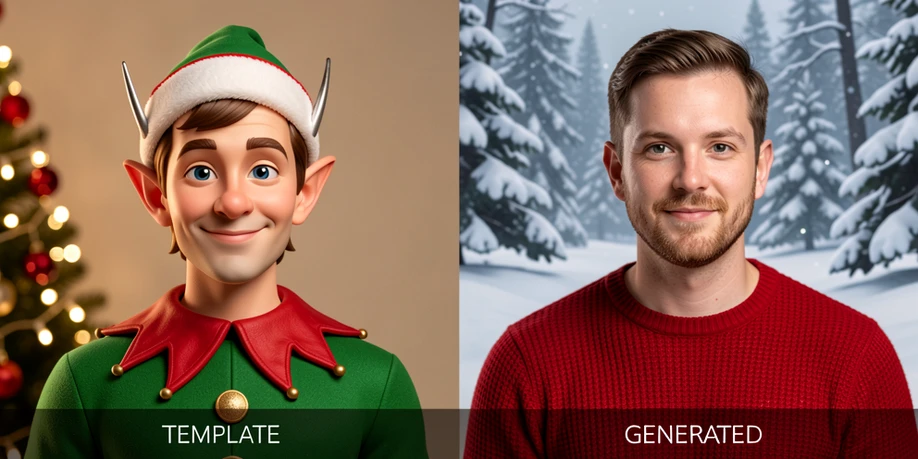
The 'do not change my face' line is doing real work, and so is naming hair color, hair style, and eye color. Skip them and the model drifts toward a generic face that no longer reads as you. When a run finally nails it, save that prompt. You can reuse it next December, or shift it to another theme by swapping only the outfit and background details.
Troubleshooting: when your Christmas face swap looks wrong
A bad result almost always traces back to one of four causes. Each has a mechanical reason and a quick fix.
- Filters, sunglasses, or heavy editing on the source photo. Face detection reads facial landmarks, and these obscure or distort them. Re-upload an unfiltered, unobstructed, front-facing photo shot in natural light.
- No hair or eye color in an AI prompt. Left unspecified, the model nudges hair and eyes toward a generic look that changes your appearance. Always name hair color, hair style, and eye color, then add 'do not change my face'.
- Quitting after one weak generation. AI output varies run to run, so a single poor result is not the tool's ceiling. Run the same prompt again unchanged before you adjust anything.
- A blurry or low-resolution source photo. Low quality starves the AI of the detail it needs to detect and rebuild your features. Start from a sharp original camera photo, not a screenshot of a photo.
Here is what that second mistake looks like in practice. A prompt that left out hair color came back blonde, and the corrected version added 'dark brown hair, shoulder length' to return a matching result. Specificity is the cure, so prefer an exact shade like 'dark auburn hair, shoulder length, slight wave' over a plain 'brown hair'.
Free tier and privacy quick-reference
Watermarks and data policies are the trust questions people ask after the swap, when it is too late to matter. Here they are before you upload your face.
| Tool | Free-tier watermark | Photo handling | Notes |
|---|---|---|---|
| Media.io AI Christmas Face Swapper | None on basic use | Processed securely, not used for AI training without permission | Commercial use requires a licensing review |
| Pixlr AI Face Swap | None, exports as PNG | Output owned by you, content kept private and secure | Transparent background suits card layouts |
| EaseMate AI Christmas Filter | None for basic use | Free for basic use | Heavier use needs a check-in or subscription for credits, 32 MB upload limit |
| Christmas Santa AI Face Swap (iOS) | None | Data not collected, photos never stored on servers | On-device history, clearable anytime |
| Christmas santa photo editor (Android) | None | No data shared with third parties, no data collected | Photos never stored on servers |
| Wondershare Filmora (free version) | Watermark added to exported videos | Video output, outside this photo workflow | Listed as a watermark caution only |
One line cuts through all of it. Personal use is supported across every tool here, while commercial use varies and should be checked per tool, as Media.io spells out explicitly for its AI-generated images.